

Platforms
Bwat in the terminal
Bring the same coding agent into a focused terminal session, a one-off shell command, or an existing pipeline.
On this page
Install the CLI
The Bwat CLI requires Node.js 22 or newer. Install it globally with npm:
npm install --global bwat
Move to a project and start an interactive session:
cd path/to/your-project
bwat
On the first run, follow the browser sign-in. Bwat then asks whether you trust the folder before it reads project instructions or starts working there.
Trust only folders whose contents you know. Project files can influence what a coding agent sees, and approved commands run from that folder.
The interactive workspace
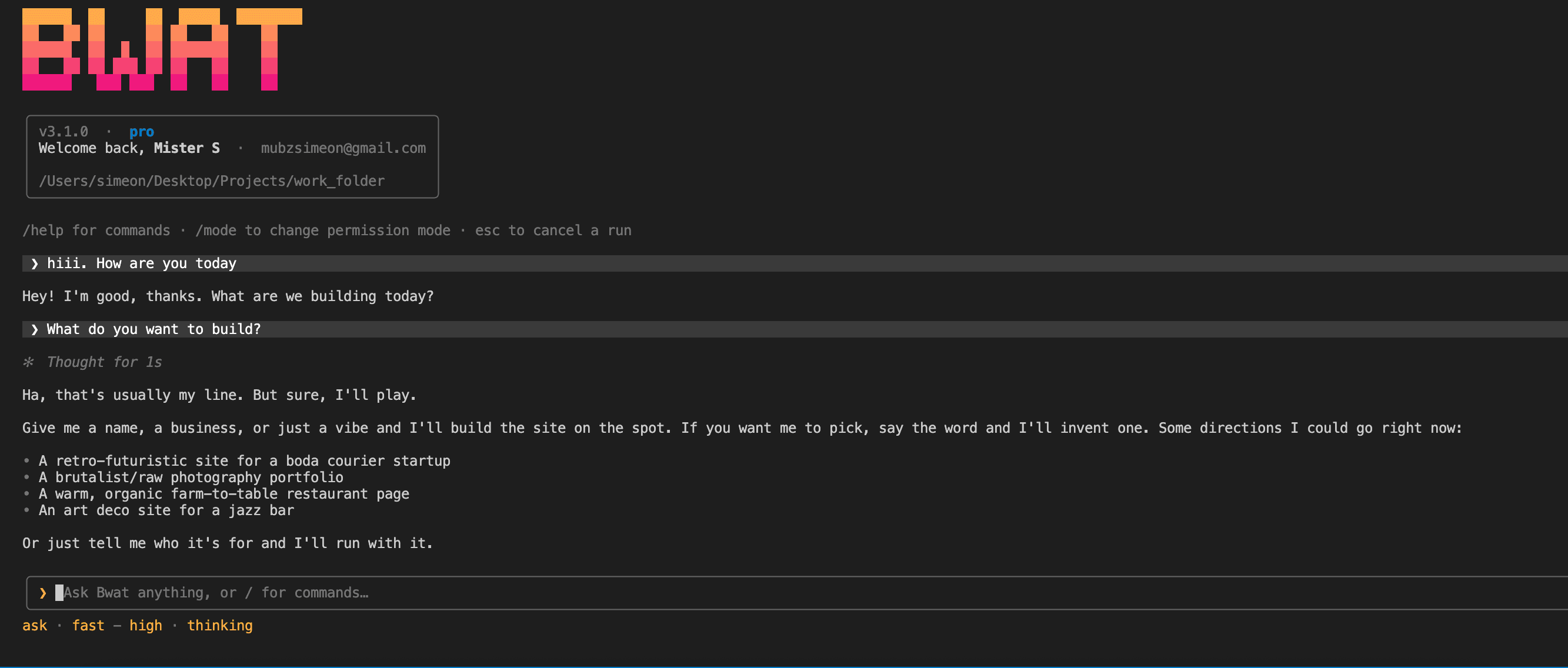
Interactive mode keeps the conversation, approval cards, progress, and command menu in one terminal view. Type / to browse commands, /help to open the docs, /mode to change permissions, and press Escape to stop the current run.
Ask once from the shell
Use --prompt (or -p) when you want one answer and then an exit. Sign in first with bwat login.
bwat login
bwat -p "Explain how authentication works in this repository"
bwat -p "Run the relevant tests and fix the failure" --mode acceptEdits
One-shot commands that can edit files still need a trusted folder. Run interactive bwat once to approve the folder, or add --trust-folder only when you have already decided the current folder is safe.
Pipe context into Bwat
Standard input is added to your prompt, which makes Bwat useful in existing shell workflows:
git diff --staged | bwat -p "Review this change for correctness"
npm test 2>&1 | bwat -p "Explain the failure and suggest the smallest fix"
Review piped content before sending it if it may contain passwords, private keys, customer data, or other information that should not leave your machine.
Mention files
Type @ followed by a workspace path to hand Bwat a specific file. Completion searches project paths and also matches file names.
@src/auth/session.ts Find the race condition in session refresh.
Then add a focused regression test.
Continue a session
| Command | Behavior |
|---|---|
bwat --continue | Continue the most recent session for this project |
bwat --resume | Choose an earlier session |
bwat --resume <id> | Open a known session directly |
/history | Open the session picker while Bwat is running |
The CLI and VS Code extension use the same local session store on the same machine, so you can begin in one and continue in the other.
Review proposed edits
In Manual mode, the CLI prints each proposal and waits for a choice. If you choose to edit a proposal, Bwat opens the program set by $VISUAL or $EDITOR, then applies the version you save. Without either variable, it uses the available system editor.
The terminal and VS Code run the same coding engine, but VS Code can also provide editor selections, native diffs, and editor diagnostics. Choose the surface that fits the task, not a different agent.
Next steps
- See every startup option in the CLI reference.
- Learn how
BWAT.mdand private project notes work in Instructions and memory. - Use permission modes to decide what should pause for review.