

Platforms
Bwat for Visual Studio Code
Keep the agent beside your code, give it the context already open in your editor, and review every proposed change as a real diff.
On this page
Install and open Bwat
- Install Bwat from the Visual Studio Marketplace.
- Open a project folder or workspace in VS Code.
- Select the Bwat icon in the Activity Bar, then choose New Session.
- Follow the browser sign-in the first time. When it finishes, return to VS Code and send a message.
Open the Command Palette and run Bwat: Open Welcome whenever you want to revisit the built-in setup tour.
Review changes in the editor
When an edit needs approval, Bwat opens a native, editable diff beside the chat. The existing file is on the left and the proposal is on the right. You can change the proposal before accepting it.
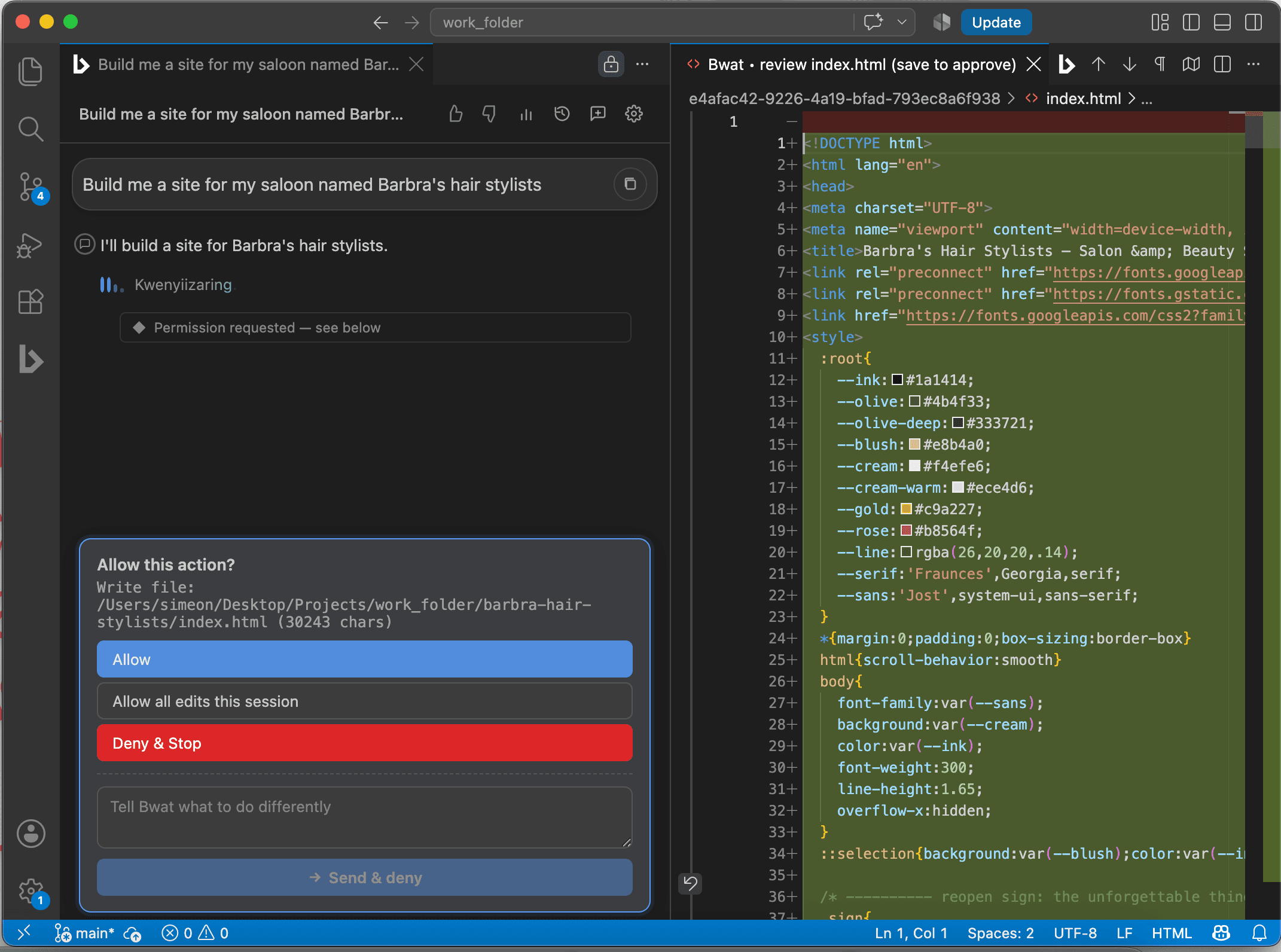
- Press
Ctrl+Son Windows or Linux, orCmd+Son macOS, while the proposed side is active to approve exactly what you see. - Choose Allow in chat to accept the proposal without editing it yourself.
- Close the review tab without saving, or choose Deny & Stop, to reject the change and stop the run.
- Choose Tell Bwat what to do differently when the direction is close but needs correction.
Bwat only changes the file after you approve it in Manual mode. Switch permission modes when you want a different balance between review and speed.
Give Bwat useful editor context
Bwat can see the active file and your current selection, so requests like explain this or refactor this function can start from what is already on screen. Type @ in the message box to attach another workspace file by path.
Explain the selected function and show me where it is called.

@src/auth/session.ts Add a test for an expired refresh token.
Follow the existing test style and run only the relevant test file.
Use /explain with a selection or active file for a guided explanation. Use /init once per project to let Bwat propose a concise BWAT.md with the commands and conventions it should remember.
Choose how much Bwat can do
| Mode | Behavior | Use it when |
|---|---|---|
| Manual | Asks before edits and other actions that can change something | You are learning the project or want close review |
| Edit automatically | Applies file edits, but still asks before shell commands and web fetches | You are reviewing changes as Bwat works |
| Plan | Studies the project and proposes an approach without editing | The request is broad, risky, or unclear |
| Auto | Works without action-by-action approval | The task is contained, reversible, and well understood |
Change modes from the selector beside the message box or run /mode. Read permission modes before using Auto on important work.
Continue earlier work
Select the Bwat icon in the Activity Bar to see recent sessions, or run /history in chat. Opening a session restores the conversation so you can continue with the same project context.
Work with Source Control
Open VS Code Source Control and run Bwat: Generate Commit Message to draft a message from the current diff. The Bwat view in Source Control also provides a plain-language summary and a green, orange, or red review signal to help you decide what deserves a closer look before committing.
Treat the Source Control summary as a review aid, not a replacement for reading the diff or running the project checks.
Useful commands
| Command | What it does |
|---|---|
/clear | Start a fresh conversation |
/compact | Condense a long conversation while keeping the important work |
/history | Open an earlier session |
/mode | Change the permission mode |
/effort | Choose how deeply Bwat should work through the request |
/explain | Explain the current selection or active file |
/init | Propose project instructions in BWAT.md |
/feedback | Send product feedback from the extension |
/help | Open the Bwat documentation in your browser |